
How to Start a Live Chat
- Go to accszone.com on any device (desktop or mobile).
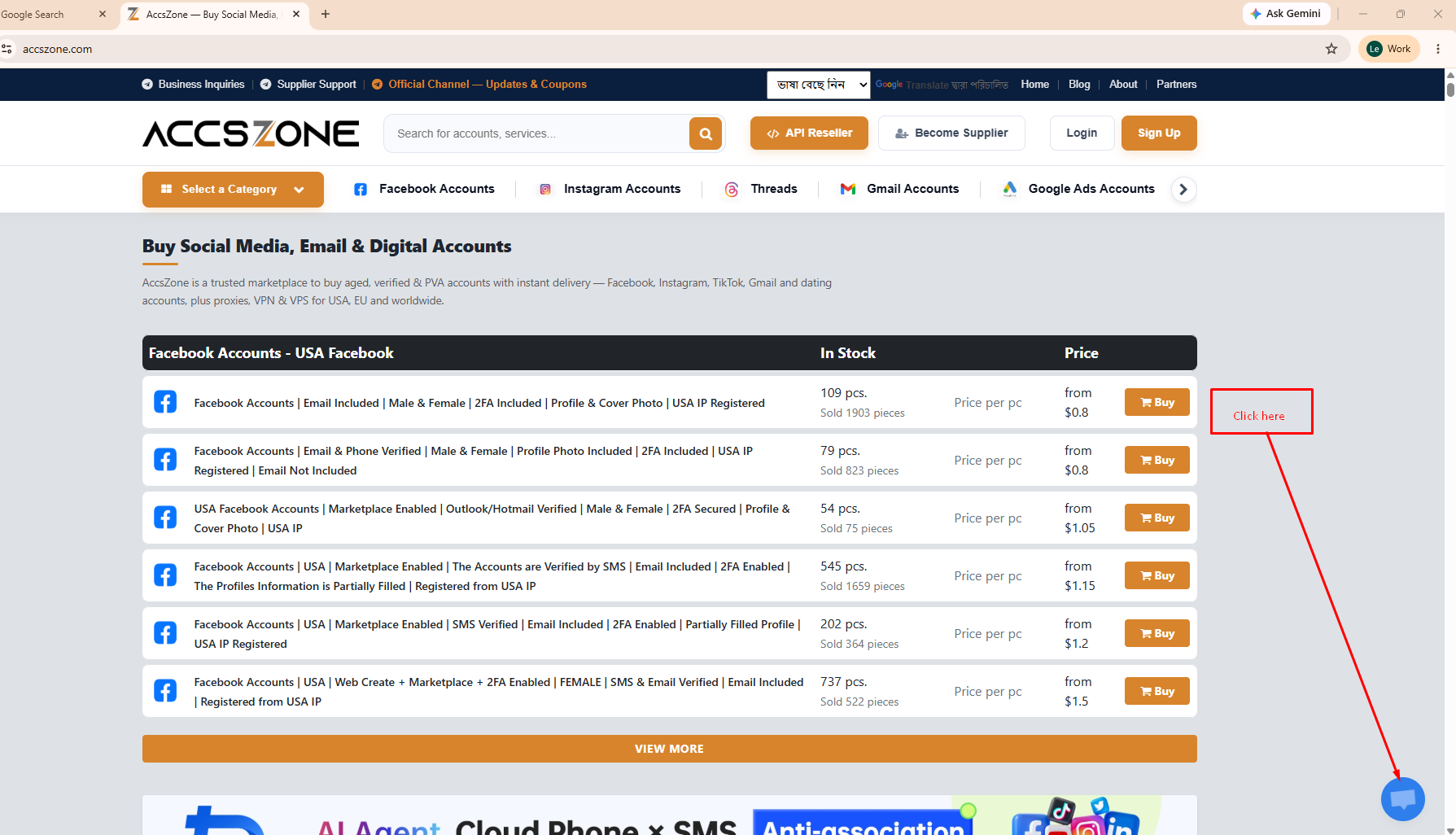
- Look at the bottom-right corner of the page. You'll see a round chat icon with a message bubble, usually next to a box that says "Questions? Chat with us" and a green "We are online" status.
- Click the blue "Chat with Support Team" button (or the round chat bubble icon).
- A chat window will open — type your question or issue, and a live agent will respond in real time.
You do not need to log in or create an account to start a chat — the widget is available on every page of the site.
Reference screenshot — the red arrow shows where the chat button appears on the page:
Support Availability
- 24/7 live chat — an agent is available at any hour, any day of the week, including weekends and holidays.
- There is no ticket system — all support requests are handled directly through the live chat.
- Response times are typically immediate to a few minutes, depending on chat volume.
"I Can't Find the Chat Button" — What to Do
Some customers report that the chat icon doesn't appear on their screen. This is almost always caused by a browser extension blocking the widget — most commonly ad blockers (like AdBlock, uBlock Origin, AdGuard) or privacy/anti-tracking extensions, since these tools often block third-party chat scripts by default without asking.
If you don't see the chat button, try the following, in order:
1. Disable your ad blocker for this site
Click your ad blocker's icon in the browser toolbar and choose "Pause on this site", "Disable on accszone.com", or "Allowlist this site" — the exact wording depends on the extension. Then refresh the page.
2. Open the site in a Private / Incognito window
Extensions are usually turned off by default in private browsing mode, which makes this a quick way to confirm an extension is the cause.
- Chrome:
Ctrl+Shift+N(Windows) /Cmd+Shift+N(Mac) - Firefox:
Ctrl+Shift+P/Cmd+Shift+P - Brave:
Ctrl+Shift+N/Cmd+Shift+N - Opera:
Ctrl+Shift+N/Cmd+Shift+N
Then visit accszone.com again and check the bottom-right corner.
3. Try a different browser
If you're not sure which extension is blocking it, simply try another browser you have installed — Chrome, Firefox, Brave, Opera, Edge, or Safari — and visit accszone.com there. The chat button should appear normally on a browser without the blocking extension installed.
4. Clear cache and reload
Occasionally a cached version of the page loads without the chat script. Refresh the page with Ctrl+F5 (Windows) or Cmd+Shift+R (Mac), or clear your browser cache and reload accszone.com.
5. Give it a few seconds
On slower connections, the chat widget can take a moment to load after the rest of the page. Wait 5–10 seconds and check the bottom-right corner again before assuming it's missing.