Why Your Purchased Gmail Accounts Get Banned in 48 Hours (And How to Fix It)
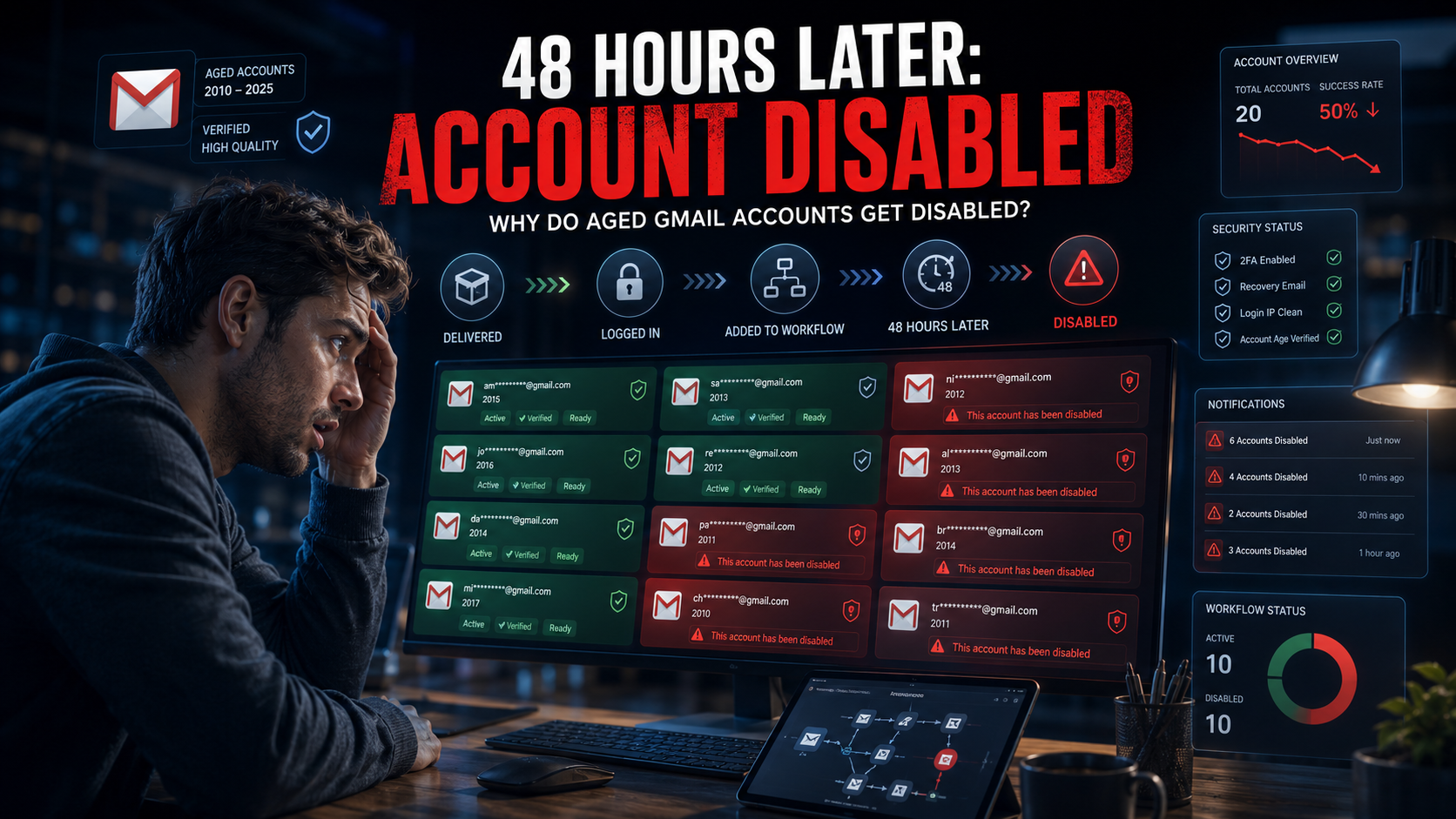
You bought aged Gmail accounts. They looked perfect on delivery. You logged in, added them to your workflow, and within 48 hours half of them showed the dreaded "This account has been disabled" message. Sound familiar? You're not alone — and it's almost never the seller's fault.
This guide breaks down exactly why purchased Gmail accounts die within 48 hours, the seven technical causes that account for 95% of these bans, and the step-by-step protocol that keeps accounts alive for months instead of days.
By the end, you'll know exactly what to do differently on your next batch — and how to tell whether your last ban wave was a supplier problem or an operational one.
The 48-Hour Ban Pattern: What's Actually Happening
When a Gmail account gets suspended within 48 hours of a new login, Google isn't randomly banning accounts. It's running the same fraud detection loop it's been refining since 2015, and every purchased account triggers at least one of its flags on first use.
Here's the timeline of what happens inside Google's systems:
| Time After Login | What Google Checks | What Triggers a Ban |
|---|---|---|
| 0–5 minutes | Login location, device, browser fingerprint | New country + new device + no cookies |
| 5–60 minutes | Session behavior, mouse movement, timing | Bot-like patterns, no idle time, fast navigation |
| 1–6 hours | What you do with the account | Immediate service signups, verification attempts |
| 6–24 hours | Recovery method changes, 2FA modifications | Changing security settings from new location |
| 24–48 hours | Pattern matching against other flagged accounts | Fingerprint match with previously banned accounts |
The 48-hour ban isn't one event — it's a cascade. Each checkpoint you fail increases the risk score. Enough flags and the account gets suspended, disabled, or forced into an unrecoverable verification loop.
The 7 Reasons Your Accounts Die (And How to Fix Each One)
IP mismatch between account origin and your login
The single biggest killer. A Gmail account created from a US IP that suddenly logs in from a Bangladesh, Vietnam, or Nigeria IP triggers an immediate location-anomaly flag. Google looks at the entire IP history of the account — creation, verification, first login — and compares it to your current session.
Datacenter IPs make this worse. Google maintains a real-time database of known datacenter IP ranges (AWS, DigitalOcean, OVH, Hetzner, and thousands of smaller providers). A login from any of these ranges gets flagged before the account even loads.
Browser fingerprint collision with your other accounts
Even with a perfect proxy, your browser leaves a unique fingerprint that identifies your device across every website you visit. This fingerprint combines your screen resolution, installed fonts, WebGL renderer, canvas hash, timezone, hardware concurrency, and 40+ other parameters into a unique identifier.
If you log into 10 different Gmail accounts from the same Chrome browser, Google's fingerprint tracking links all 10 accounts together. Ban one for suspicious activity, and the pattern-matching engine flags the other nine within hours.
Aggressive first-session behavior
This is the mistake that kills more accounts than IP problems. You log in, immediately go to Facebook to sign up, then immediately create an Instagram account, then start sending outreach emails. Within 60 minutes, the account has done more high-signal actions than a legitimate user does in a week.
Google measures session tempo. A real user logs in, checks their inbox, clicks on an email, reads it for 30 seconds, maybe replies, then leaves. A bot or account farmer logs in and immediately performs high-value actions with no idle time.
Recovery method handover failure
Most aged Gmail accounts come with recovery information attached — a phone number and backup email set by the original creator. If the seller doesn't fully hand over recovery access, two things happen: the original owner can reclaim the account weeks later, and Google's security checks flag the mismatch between the recovery contact and your login location.
Worse, some buyers immediately change recovery methods from a new location. Google treats a recovery-info change from a new IP + new device + no session history as high-risk behavior. This is one of the top triggers for the 24 to 48 hour ban wave.
Cookie and session history absence
A legitimate Gmail account has years of cookies, cached data, and session history embedded in the browser it normally uses. When you log into a purchased account from a clean browser profile with zero cookies and no history, Google sees an anomaly: an account that supposedly has years of history is suddenly logging in with none of it.
This is especially triggering for older accounts. A 2012 Gmail should have thousands of session cookies. Zero cookies on a 2012 Gmail is a red flag.
Cross-account fingerprint bleed
You properly configured a unique anti-detect browser profile for each Gmail account. Good. But then you accessed your personal accounts (your real email, your Facebook, your bank) from the same physical device. Google's tracking correlates these sessions through hardware-level signals that most anti-detect browsers can't fully mask.
The result: your entire portfolio of "unique" Gmail accounts gets linked to your personal identity. When Google eventually detects one is being used for scaled outreach or account creation, it flags them all.
Supplier-side account contamination
Sometimes it really is the seller's fault. Common supplier-side problems: the account was previously sold to another buyer who got it banned before it was resold to you; the account was created in a batch that Google already flagged for spam; the "aged 2015" account is actually a 2024 account with a spoofed creation date; the recovery information was never actually removable.
These accounts die within the first login attempt or the first 6 hours — not the 24 to 48 hour window that comes from operational mistakes.
The 14-Day Warmup Protocol That Keeps Accounts Alive
Every professional multi-account operator uses some version of this protocol. Follow it exactly for the first 14 days and your survival rate jumps from 30% to 90%+.
Day 0 (First Login)
Set up your anti-detect browser profile with matched-country residential proxy. Import any cookies the supplier provided. Log in via the standard Gmail login URL (not a direct dashboard link). Solve any verification challenges normally — don't refresh or retry.
Once logged in, spend 5 minutes reading existing emails (yes, even promotional emails from Google). Click on 2 or 3 emails and let them stay open for 30+ seconds each. Scroll around the inbox. Don't change any settings. Log out normally.
Days 1–2 (Passive Mode)
Log in once per day, at roughly the same time. Read a few emails. Do nothing else. No signups. No settings changes. No sends. No verifications.
This is the hardest part psychologically because you want to start using the account immediately. Resist. This 48-hour passive period is exactly what proves to Google's fraud detection that you're a normal user, not an operator.
Days 3–5 (Light Activity)
Start doing what a normal user does: unsubscribe from a promotional email, star an email, archive a few, adjust one settings option (like your inbox density or theme). Send one email to another controlled Gmail account you own — a brief, conversational message, not a template.
If the account has YouTube history or Google Photos, browse those briefly too. Google treats cross-product engagement as a strong "legitimate user" signal.
Days 6–9 (Trust Building)
Use the Gmail as a recovery email for one low-risk service (a newsletter signup, a forum registration, something that doesn't require phone verification). Receive the confirmation email, click the link, complete the signup. This creates the exact pattern Google expects from a real user.
Continue daily logins with 5 to 10 minutes of natural activity. Vary your login times slightly to look human.
Days 10–14 (Ramp Up)
Now you can start using the account for its intended purpose. If it's for Facebook signup, do that on Day 10 — from the same browser profile, same proxy, same fingerprint you've been using for two weeks. The account now has enough session history that Google sees the Facebook signup as normal user behavior, not suspicious multi-account creation.
Scale gradually. Don't sign up for 5 platforms in one day. Space major actions across days.
Day 15+ (Full Operation)
The account has established a fingerprint history, a session pattern, and a behavioral profile that Google's fraud detection now treats as legitimate. Continue using consistently — same browser profile, same proxy, same device — and the account should survive for months to years.
Never change the proxy country. Never move the account to a different anti-detect browser. Never let another Gmail account touch the same browser profile.
Anti-Detect Browser Setup: The Non-Negotiable Foundation
You cannot manage multiple Gmail accounts safely without an anti-detect browser. Regular Chrome, Firefox, and Edge all leak fingerprint data that Google uses to link accounts to a single operator. Even Chrome's "incognito mode" doesn't fix this — incognito changes cookie storage but leaves your fingerprint identical.
A proper anti-detect browser gives every Gmail account its own isolated environment: unique fingerprint, isolated cookies, dedicated proxy, and no data bleed between profiles. Look for these features when choosing one:
Anti-Detect Browser Requirements
- Unique WebGL, canvas, and audio fingerprints per profile
- Per-profile proxy configuration (SOCKS5 and HTTP)
- Persistent cookies and cache per profile
- Timezone, language, and geolocation matched to proxy
- Cloud sync so profiles work from any device
- Team access controls if you're running with staff
- Cookie import/export in Netscape and JSON formats
Several reputable anti-detect browsers exist in this category. Pick one, learn it deeply, and use it consistently. Switching browsers mid-workflow triggers the exact fingerprint anomaly you're trying to avoid.
Proxy Strategy: Residential vs Mobile vs Datacenter
Not all proxies are created equal, and using the wrong type is the fastest way to burn an account. Here's how the three tiers actually perform for Gmail:
| Proxy Type | Gmail Trust Level | Cost | Best For |
|---|---|---|---|
| Mobile (4G/5G) | Highest — shared with real users | $50–$150/mo | High-value accounts, ad accounts |
| Residential | High — real ISP connections | $3–$15/GB | Standard multi-account management |
| Datacenter | Very low — flagged instantly | $1–$5/proxy | Never use for Gmail |
| Free/Public | Zero — instant ban | Free | Never use for anything |
The country match matters more than the proxy tier. A residential Vietnam proxy is safer for a Vietnam-registered Gmail than a mobile US proxy. Always match origin country before optimizing for proxy quality.
When to Blame the Seller vs When to Blame Yourself
Here's the diagnostic framework that saves you from switching suppliers when the real problem is operational:
It's the seller's fault if:
- Accounts fail to log in at all (invalid credentials on delivery)
- Accounts trigger "verify phone" on first login attempt with the supplied recovery number
- Accounts show "disabled" within the first 6 hours despite perfect proxy and fingerprint setup
- The recovery information supplied doesn't actually work
- Multiple accounts from the same batch all fail identically (indicates supplier-side flag)
It's your operational setup if:
- Accounts log in fine but die 24 to 48 hours later
- Accounts survive the first day but die when you try to sign up for another service
- Accounts work individually but get banned in waves when you scale up
- Accounts die when you change recovery settings from a new location
- Only some accounts die from a batch (others are surviving, so batch quality is fine)
It's a mixed problem if:
- Accounts survive when you use residential proxies but die with datacenter proxies (proxy quality is on you, but seller could provide better guidance)
- Accounts die when you rush the warmup but survive when you follow protocol (buyer setup, but seller could provide warmup guidance)
Emergency Recovery: What to Do If an Account Is Limited
Not every "banned" account is actually banned. Google has several intermediate states that look like bans but are recoverable if you act correctly:
State 1: "Verify your phone number"
The most common recoverable state. Google is asking for phone verification because it detected an anomaly. If you have the recovery phone number the supplier provided (or a fresh number you can associate), verify with it. Do this from the same browser profile and proxy you've been using, not from a new setup.
State 2: "Confirm it's you" via recovery email
Google sends a verification code to the backup email. If you have access to the backup email (as most quality suppliers provide), retrieve the code and complete verification. If the backup is inaccessible, the account is likely unrecoverable.
State 3: "Unusual activity" temporary lock
A 24 to 72 hour cooldown. Don't log in during this period. Don't attempt password resets. Don't do anything. After the cooldown expires, log in normally from your original browser profile and proxy. If access is restored, treat it as a full reset and restart the warmup protocol from Day 1.
State 4: "Your account has been disabled"
Usually terminal. Google has decided the account violated terms of service. You can appeal via Google's account recovery form, but success rates are under 5% for accounts flagged for policy violations. Consider this account lost and focus on protecting the rest of your batch.
Preventing the Next Ban Wave
The buyers who consistently keep accounts alive for 6+ months share the same operational discipline. Adopt these five habits:
- Buy in small batches first. Test 5 accounts from any new supplier before ordering 100. Run them through your full protocol and see which survive 14 days.
- Document your setup per account. Track proxy IP, browser profile ID, warmup start date, and every major action. When accounts die, you can spot patterns.
- Never share browser profiles between accounts. One Gmail = one profile = one proxy. No exceptions.
- Warm up before you need the accounts. If you need 20 working Gmails on the 15th of the month, buy them on the 1st. Don't wait until you need them urgently and skip the warmup.
- Choose suppliers with real replacement policies. First-login guarantees protect you from supplier-side failures. Peer-to-peer marketplaces without platform-enforced replacement leave you disputing with individual sellers.
Frequently Asked Questions
Why do purchased Gmail accounts get banned so quickly?
Purchased Gmail accounts get banned within 48 hours because Google's fraud detection compares every login against the account's historical fingerprint. When a Gmail created in Brazil suddenly logs in from Vietnam through a datacenter IP with a different browser fingerprint and no cookies, Google flags the account as compromised and locks it. The most common causes are IP mismatch, browser fingerprint collision with your other accounts, aggressive first-session activity, and improper recovery method handover.
How long should I warm up a purchased Gmail account before using it?
A proper warmup takes 7 to 14 days. In the first 48 hours, only log in and browse Gmail passively — don't send emails, don't verify anywhere, don't attach new services. Days 3 to 7, start light activity: read a few emails, adjust settings, use it as a recovery email for a low-risk service. Days 8 to 14, gradually increase activity. Only after 14 days of clean behavior should you use the account for its intended purpose like Facebook signups, cold outreach, or platform verification.
What kind of proxy should I use with a purchased Gmail?
Always match the proxy country to the Gmail's original registration country. If the account was created from a US IP, use a US residential or mobile proxy. Residential proxies are the safest for Gmail — they route through real ISP connections and pass Google's IP quality checks. Datacenter proxies trigger immediate flags. Mobile proxies are the highest trust tier but cost more. Never use free proxies or shared proxies used by hundreds of other accounts.
Can I fix a Gmail account that's already been suspended?
It depends on the suspension type. If the account shows a "verify your phone number" prompt, you can often recover it by verifying with the phone number provided by the seller or a new number. If it says "account disabled" with no recovery option, it's permanently gone. Accounts locked for suspicious activity within 48 hours are usually recoverable if you have the original recovery information; accounts flagged for policy violations after use are typically unrecoverable.
Is it the seller's fault or my fault when accounts get banned?
It's usually the buyer's setup, not the seller's account. A quality Gmail from any reputable marketplace will survive if you use proper anti-detect browser configuration, matched-country residential proxies, and a 7 to 14 day warmup. If accounts die on first login despite good setup, that's the seller's fault (recycled account, incorrect recovery info, or spoofed age). If accounts survive first login but die during use, that's almost always the buyer's operational setup, not the account quality.
What is browser fingerprinting and why does it matter for Gmail?
Browser fingerprinting is how Google identifies your device across sessions. It combines dozens of signals — screen resolution, installed fonts, WebGL renderer, canvas hash, timezone, language, hardware concurrency, and 40+ other parameters — into a unique identifier. If you log into 10 different Gmail accounts from the same browser fingerprint, Google links them together and treats them as one operator. This is why serious multi-account users run anti-detect browsers that generate a unique fingerprint per account profile.
The Bottom Line
Purchased Gmail accounts get banned in 48 hours for predictable, technical reasons — not bad luck and not always bad suppliers. The 7 causes above account for 95% of ban waves, and every one of them has a fix that's cheaper than replacing dead accounts every week.
The buyers who complain loudest about account quality are usually the ones skipping warmup, using datacenter proxies, and running everything from one browser. The buyers who quietly keep accounts alive for months are the ones treating multi-account management as the technical discipline it is.
Fix your setup first. If accounts still die on first login despite proper proxy and fingerprint isolation, then it's time to switch suppliers.
Buying Gmail accounts that actually survive?
AccsZone produces Gmail accounts in-house with verified country-specific IPs, real phone numbers, and clean recovery configuration. Every account passes verification checks before being added to the catalog, and the first-login replacement policy triggers automatically if an account fails to log in on first attempt.
Browse aged Gmail from 2010 to 2025, filter by country and configuration, delivered instantly with crypto payment.